Table Datasheet, Query Datasheet, Form View

This bar displays in Datasheet and Form views.
These three views are used to display records, so the toolbar is the same
for all three.
 Click a button to jump to its description or just scroll the page.
Button: Handle


At the left end of a toolbar is an area called
the handle, which looks a bit different in different versions of MS
Access. Hover over this area and the mouse pointer changes to the
Move shape  .
Drag while in the Move shape and the toolbar will move. If you drag
perpendicular to the bar, it will undock and float. Drag to another edge
of the window and the toolbar will dock there.
.
Drag while in the Move shape and the toolbar will move. If you drag
perpendicular to the bar, it will undock and float. Drag to another edge
of the window and the toolbar will dock there.
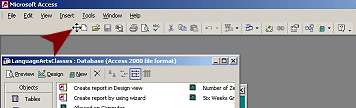
Toolbar dragged to the right
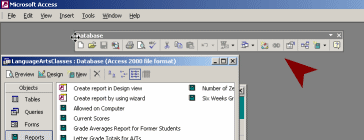
Toolbar floating
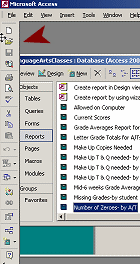
Toolbar docked at left
Button: Views


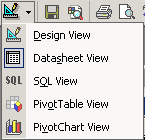
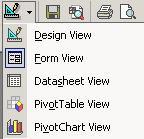
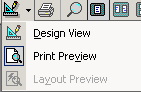
The Views button toggles between Datasheet and Design or Print Preview and Design. The arrow opens a list of all of the available views.
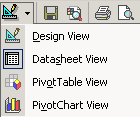 |
 |
| Table | Query |
 |
 |
| Form | Report |
Button: Save

The Save button is used to save the current object that is open for editing.
It does not save the whole database. It
does not save a record.
The button is grayed out
 in
the Database bar since there is no object selected to be saved.
in
the Database bar since there is no object selected to be saved.
Saving records automatically: By default, MS Access automatically saves a record when you switch to a new record, or when you close the active object where you were adding or editing records, or when you close the database or Access itself.
Save immediately: The menu command | will save the current record before you leave it. SHIFT + ENTER is the key combo to save a record immediately.
Saving database with new name: To make a copy of a database with a new name is rather awkward.
- Close the database, copy and paste it in an Explorer window, and then rename the copy. Awkward!
 Access 2003: Save a backup
copy with File | Backup Database...
Access 2003: Save a backup
copy with File | Backup Database...
Button: Search

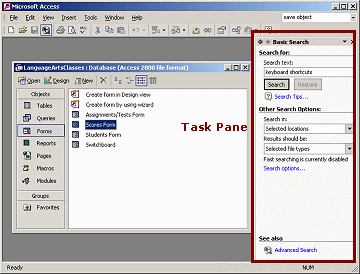
The Search button opens the Basic Search task pane. In this pane you can search your computer or network locations for files, especially Office documents.
Button: Print

The Print button prints the selected object immediately.
 The Print dialog
does NOT appear. Do not use this button unless you are SURE that
the print settings are what you want. Be sure that you want to
print the whole thing!!
The Print dialog
does NOT appear. Do not use this button unless you are SURE that
the print settings are what you want. Be sure that you want to
print the whole thing!!
Button: Print Preview

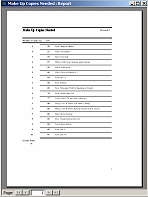
The Print Preview button changes the view to show how the current object will look if printed.
Button: Spell Check

The Spell Check button will check the spelling in records.
It does not check spelling in object names, field names, or form/report labels.
Buttons: Cut, Copy, Paste

The Cut, Copy, and Paste buttons work as usual for database objects, the contents of fields, and design elements for forms and reports.
 Cut removes the selected
item and copies it to the Windows Clipboard.
Cut removes the selected
item and copies it to the Windows Clipboard.
Keyboard shortcut CTRL + X
 Copy leaves the selected
item in place and copies it to the Windows Clipboard.
Copy leaves the selected
item in place and copies it to the Windows Clipboard.
Keyboard shortcut CTRL + C
 Paste inserts the
contents of the Windows Clipboard.
Paste inserts the
contents of the Windows Clipboard.
Keyboard shortcut CTRL + V.
The Windows Clipboard can only remember one thing at a time, but the Office Clipboard task pane can remember the last 24 items copied from MS Office programs.
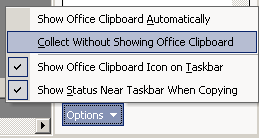 The
Office Clipboard task pane has to be active, either by being displayed on
screen or the
Collect Without Showing Office Clipboard option must be on, at the
bottom of the Clipboard task pane.
The
Office Clipboard task pane has to be active, either by being displayed on
screen or the
Collect Without Showing Office Clipboard option must be on, at the
bottom of the Clipboard task pane.
Buttons: Undo/Redo

The Undo and Redo buttons let you change your
mind about what you just did. These buttons are gray when there is
nothing in the action list.

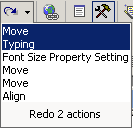 Design view: Undo
or redo the 20 most recent actions.
Design view: Undo
or redo the 20 most recent actions.
The down arrow opens the full list of actions. All actions above the
one you pick will be undone or redone. The list of actions is cleared
when you leave Design view.
Editing Records: You can undo actions only for the current
record. The Redo button does not show.

There is no list of actions, but clicking the Undo button repeatedly will back up
through the changes you made for this record. You cannot redo what you
have undone for records. The Undo list is cleared when you move to a new record
or apply a filter or switch to a different window.
Undo with menu:
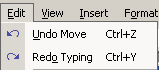 | The Edit menu will show
at the top of the menu list the last action, like Undo Move or Undo Property Setting. The
last action that you did with Undo will show as .
| The Edit menu will show
at the top of the menu list the last action, like Undo Move or Undo Property Setting. The
last action that you did with Undo will show as .
If you leave a record, you can Undo Saved Record only if you have not made a change in another record.
Editing Form/Report - Revert with menu: For a form or report, you can revert to the last saved version after making changes to the form/report. Use the menu |. You cannot redo those changes. This is handy for dumping a whole set of changes that you made since the last save.
Button: Hyperlink


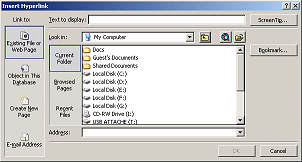
The Hyperlink button is active and shows in color when your cursor is in a field that has the type Hyperlink. Such a field would usually hold an email address, a web site address, or a network address for a document or image. Clicking the button opens the dialog Insert Hyperlink.
Buttons: Sort 
The Sort buttons rearrange the listing of records so that the selected field is in alphabetical or numerical order. Only one field at a time can be sorted with these buttons. For more complex sorts, use a query where you can sort with several fields at once.
You can also sort from the menu |.
 If you sort the results of a
query (the datasheet), you may have to close and reopen the query to get
back to the original order.
If you sort the results of a
query (the datasheet), you may have to close and reopen the query to get
back to the original order.
Button: Filter by Selection 
In a datasheet or form view, clicking the
button Filter by Selection will hide all records that do not match the
value in the current cell. The Apply Filter button goes from gray to
 color with a border while the filter is in place.
Remove filter: Click
the Apply Filter button to toggle the filter off.
You can only filter on one value in one field with this button. For more complex filters, use Filter by Form or a query.
Button: Filter by Form 
In a datasheet or form view clicking on the Filter by Form button opens a form that allows you to select values in as many fields as you wish. You must apply the filter as a separate step.
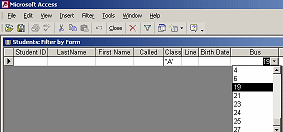
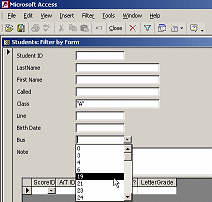
Apply Filter: Click the Apply Filter button
 to see the records that match your choices. After you click, the
button changes to Remove Filter, with a thin, blue border and a shaded
background.
to see the records that match your choices. After you click, the
button changes to Remove Filter, with a thin, blue border and a shaded
background.
Remove Filter: Click
the Remove Filter button to toggle the filter off.
Button: Apply/Remove Filter
The Apply Filter button goes from gray
 to
color when you have created a filter. It changes to the Remove
Filter button
with a
thin, blue border and a shaded background, once the filter has been
applied.
to
color when you have created a filter. It changes to the Remove
Filter button
with a
thin, blue border and a shaded background, once the filter has been
applied.
Apply Filter: Click the Apply Filter button
to apply the last filter that you created.
Remove Filter: Click
the Remove Filter button to toggle the filter off.
Button: Find 
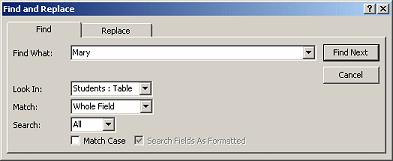
The Find button opens the Find and Replace dialog where you can look for values in the records of the current datasheet or form.
Button: New Record 
The New Record button moves the focus to the blank record or form at the end of the records.
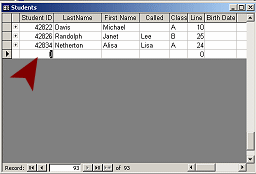
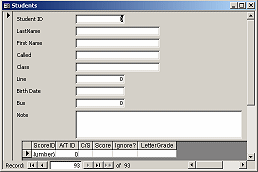
Button: Delete Record 
The Delete Record button works in Datasheet and Form views to will remove the selected record or records.
You cannot Undo a
deletion of records!
You may have to delete related records in other tables first if the relationship is set to enforce referential integrity.
Button: Database Window 
The Database Window button brings that window to the top. The Database window remains open as long as the database is open. You can minimize it or cover it with other windows.
A database programmer can hide the Database window and this button to keep users from interfering in the careful work he has done.
Button: New Object

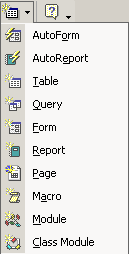 The
New Object button shows the icon for what you chose the last time. The
arrow opens a list of links.
The
New Object button shows the icon for what you chose the last time. The
arrow opens a list of links.
The AutoForm and AutoReport choices will create a basic form or report for the table or query that is currently selected. You can, of course, change the layout and the formatting afterwards.
The remaining choices open the New dialog for the object type or the
Design view for macros and modules.
Button: Help


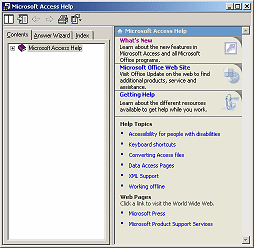
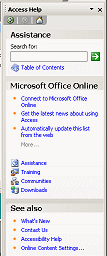
The Help button looks and behaves differently in Access 2002 than in Access 2003.
|
|
|

Button: Toolbar Options


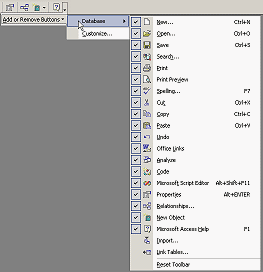
The
down arrow at the far right of a toolbar opens a cascading menu: Add or
Remove Buttons. You can customize the toolbar by
adding or removing buttons.
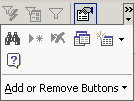 A double arrow above the down arrow tells you that the window is too narrow to show
all of the buttons on the bar. Clicking the arrow in this case will open a palette of
the hidden buttons, in addition to the menu Add or Remove Buttons.
A double arrow above the down arrow tells you that the window is too narrow to show
all of the buttons on the bar. Clicking the arrow in this case will open a palette of
the hidden buttons, in addition to the menu Add or Remove Buttons.
All Office programs display the most recently used buttons when there
is not room for all of them.
As you continue to work in a small window, which buttons are showing will change.
This can be confusing!
|
Teachers: Request permission to use this site with your class Copyright © 1997-2012 Jan Smith <jegs1@jegsworks.com> All Rights Reserved |


~~ 1 Cor. 10:31 ...whatever you do, do it all for the glory of God. ~~