

 Previous

Jan's Working with Presentations
Basics: Interface: Views
The PowerPoint interface has several different views to help you do your work. Most of your time will be spent in Normal view.
Presentation Views:
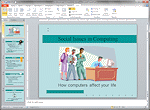
Normal View- with slide thumbnails |
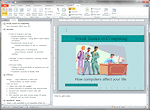
Normal View - with Outline |
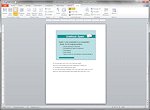
Notes Page |
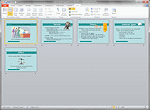
Slide Sorter |
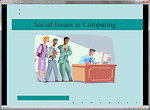
Reading View |
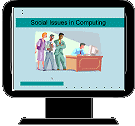
Slide Show |
|
|
|
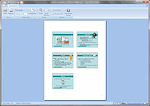
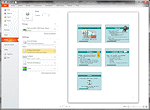
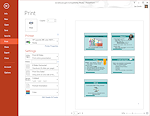
 Print Preview -2013, 2016
Master Views:
The Masters control the default look and behavior of your slides and handouts. You can configure a master for each slide layout, like Title & Content, Two Content, and Section Header.
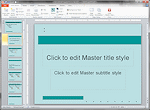
Master - |
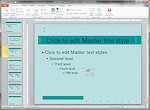
Master - |
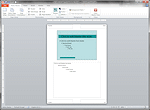
Master - Notes Page |
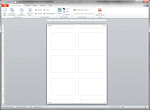
Master - Handout |
Views Bar 


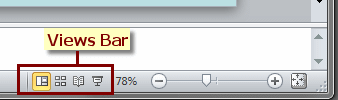 There
is a Views toolbar tucked away at the bottom right of the PowerPoint window
next to the Zoom slider. It has buttons for only 4 views: Normal, Slide
Sorter, Reading, and Slide Show.
There
is a Views toolbar tucked away at the bottom right of the PowerPoint window
next to the Zoom slider. It has buttons for only 4 views: Normal, Slide
Sorter, Reading, and Slide Show.
Slide Sorter is a handy view when you need to move slides around or select and delete several at a time.
Reading view runs the presentation in the PowerPoint window with the ribbon and navigation pane hidden.
Slide Show runs the presentation full screen.
Where are the commands to change views?
-
Views Bar:
-
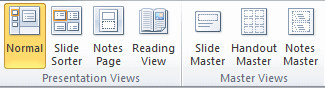
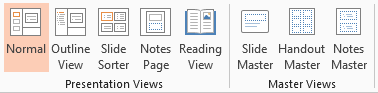
Ribbon: View tab > Presentation Views group and Master Views group

 PowerPoint 2007, 2010: Navigation pane in Normal
View: Tabs for Slide thumbnails and Outline
PowerPoint 2007, 2010: Navigation pane in Normal
View: Tabs for Slide thumbnails and Outline
-
Quick Access Toolbar:


 Print Preview - if you followed the steps in a previous lesson.
 -
Office button menu: Print > Print Preview
File tab: Print
|
|


| © 1997-2017 Jan Smith All Rights Reserved |
Site Map What's New |
Privacy Policy Terms of Service Copyright Acknowledgements |
~~ 1 Cor. 10:31 ...whatever you do, do it all for the glory of God. ~~
Last updated: March 22, 2017